
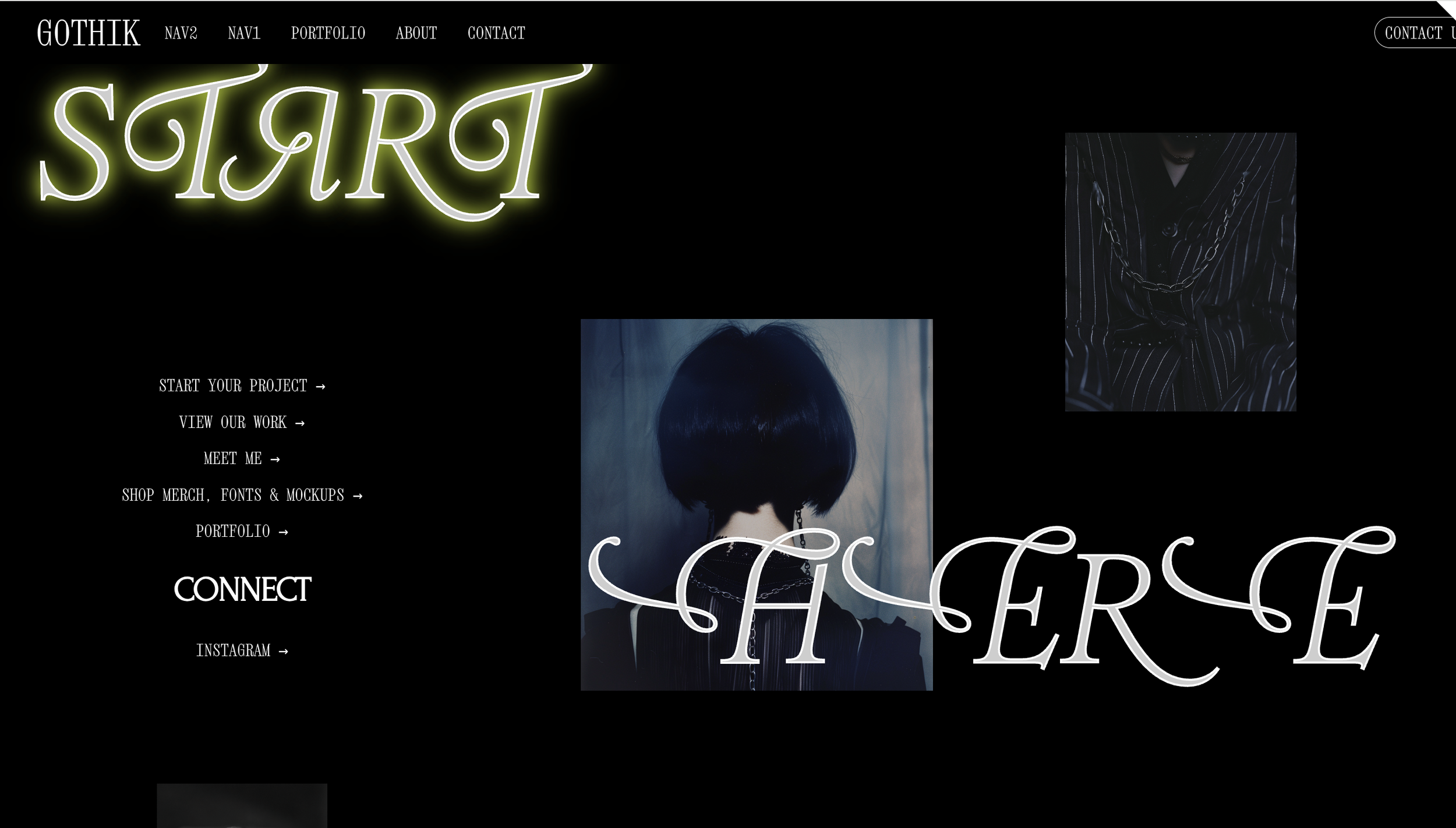
A static headline is fine. One that reacts when your cursor lands on it is memorable.
In this post we'll walk you through, step by step, how we made the headline in GOTHIK (one of our concept builds) have a white outline at rest, and light up in neon green when someone hovers over it. You don't need to know how to code.
What this effect is
Tools you'll need
How it works, in plain terms
The free code, step by step
How to customize it
Quick recap
WHAT THIS EFFECT IS
Look at the two images below. Same headline, two different moments:

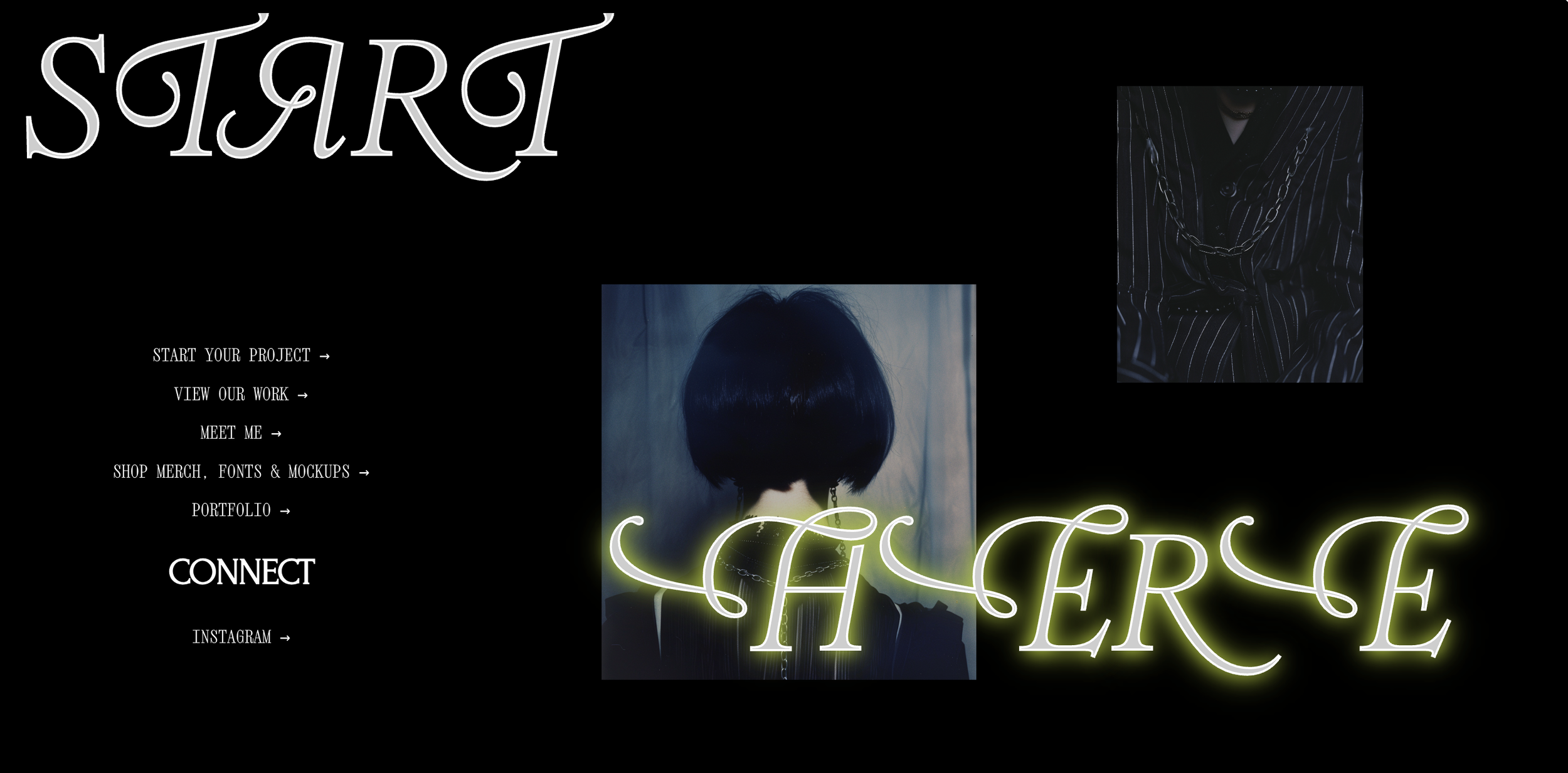
At rest, the text has a crisp white edge, like it was cut from vinyl. When you hover over it, that same edge lights up, like a real neon sign.
All of this comes from two CSS rules. No JavaScript, no paid plugins, no complicated animation.
TOOLS YOU'LL NEED
Before touching any code, here's everything you should have on hand:
The free Squarespace ID Finder extension — we use it to find the unique "name" of any block on your site, without having to dig for it in the code by hand
Access to your site's Squarespace panel (Design → Custom CSS)
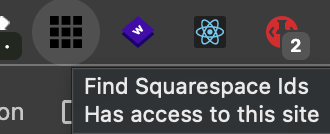
💡 Why this extension and not another one? It's free, has over 60,000 users, and does exactly one thing: shows you the ID of any block, section, or page on your site with a single click. You don't need to understand code to use it.
HOW IT WORKS, IN PLAIN TERMS
Think of the effect in two parts: the normal state and the hover state.
Part 1 — The outline (normal state). We tell the text to draw a white line around each letter. That's it. The thicker the line, the more defined the edge looks.
Part 2 — The glow (on hover). When the cursor touches the text, we turn on a colored shadow around the letters. But instead of a single shadow, we stack three, same color, on top of each other, each one softer than the last. That's what makes it read as neon light instead of a flat colored smudge — it's how real neon signs actually work: brightest at the center, fading out as it spreads.
THE FREE CODE, STEP BY STEP
Step 1 — Copy this code
/* Neon Hover Glow Effect — Free Snippet by Duna Agency */

/* 1 — NORMAL STATE: the outline */
#your-block-id-1 h1,
#your-block-id-2 h1 {
  letter-spacing: 0px !important;
  -webkit-text-stroke: 2px #FFFFFF;
}

/* 2 — HOVER STATE: the glow */
#your-block-id-1 h1:hover,
#your-block-id-2 h1:hover {
  text-shadow:
    0 0 14px #B2CA19,
    0 0 20px #B2CA19,
    0 0 30px #B2CA19;
}
Step 2 — Find your text block's ID
This is the step that usually trips people up, so let's take it slow:
Open your site in Chrome and click the Squarespace ID Finder icon in your extensions bar.
Colored labels will appear over your page: red for blocks, blue for sections, yellow for whole pages.
Find the text block you want to animate (in our case, the headline) and click its red label.
The ID gets copied automatically. It'll look something like block-yui_3_17_2_1_1712345678901_23456.
Step 3 — Replace the ID in the code
In the code from Step 1, replace your-block-id-1 with the ID you just copied, keeping the # at the start. If you're applying the effect to a second block (for example, if you have two lines of headline like in our example), repeat the process and replace your-block-id-2 too. If you only have one block, you can delete the your-block-id-2 part entirely.
Step 4 — Paste the code into your site
Go to Design → Custom CSS in your Squarespace panel, and paste the full code there.

🛑 If you're using a Code Block instead (rather than the Custom CSS panel), you need to wrap the whole code in <style> and </style> tags, or the browser will display it as plain text on the page instead of applying it as styling.
Step 5 — Check that your text is an h1
The code above assumes your headline is set up as an h1. Most hero titles in Squarespace are, but if yours isn't working, this could be why. You can check with your template's support, or try swapping h1 for h2 in the code and see if it activates.
Step 6 — Save and test the hover
Save your changes, go to your live site, and hover over the headline.
HOW TO CUSTOMIZE IT
These are the three things most people change:
The glow color. Swap all three instances of #B2CA19 for your brand color. You can find your color's code with a Google "color picker" search if you don't have it handy.
The outline thickness. The 2px value controls how defined the edge looks at rest. Try 1px for something more delicate, or 3px/4px for something bolder.
The glow intensity. The 14px, 20px, and 30px values control how far the glow spreads. Smaller numbers = a tighter glow; larger numbers = a wider spread.
This effect is part of GOTHIK, one of our concept builds , it's part of how we experiment before these ideas make it into client work.
If you want to see more of this kind of experimentation, check out our portfolio here.
And if you'd rather get snippets like this one before anyone else, join our list — we send these out as we build them, not after.
Have a version of this running on your own site? Tag @dunagency — we'd love to see it.